.png)
New Bartender: Start Here
You just joined FindBartenders. Confirm your email, finish the five-item dashboard checklist so your profile goes public, then start getting clients.
Important: do this right after you sign up. Signing up doesn't put you in front of clients yet. Until you confirm your email and finish the five items on your dashboard checklist, your profile is hidden from the public, and nobody searching for a bartender can find you.
Here's what to do next, in order. Most members get through the first few in one sitting, and nothing has to be perfect on day one. You can keep adding and polishing after you're live.
Your first steps
Confirm your email
Open the email FindBartenders sent when you signed up and click the link. Can't find it? Check spam and promotions, or log in and use the resend button in the "account hasn't been activated" notice.
Complete your dashboard checklist
Log in to My Dashboard. Until your profile is complete, a row of checklist buttons sits at the top of the page, each marked with an exclamation icon until it's done. Click each one and finish all five:
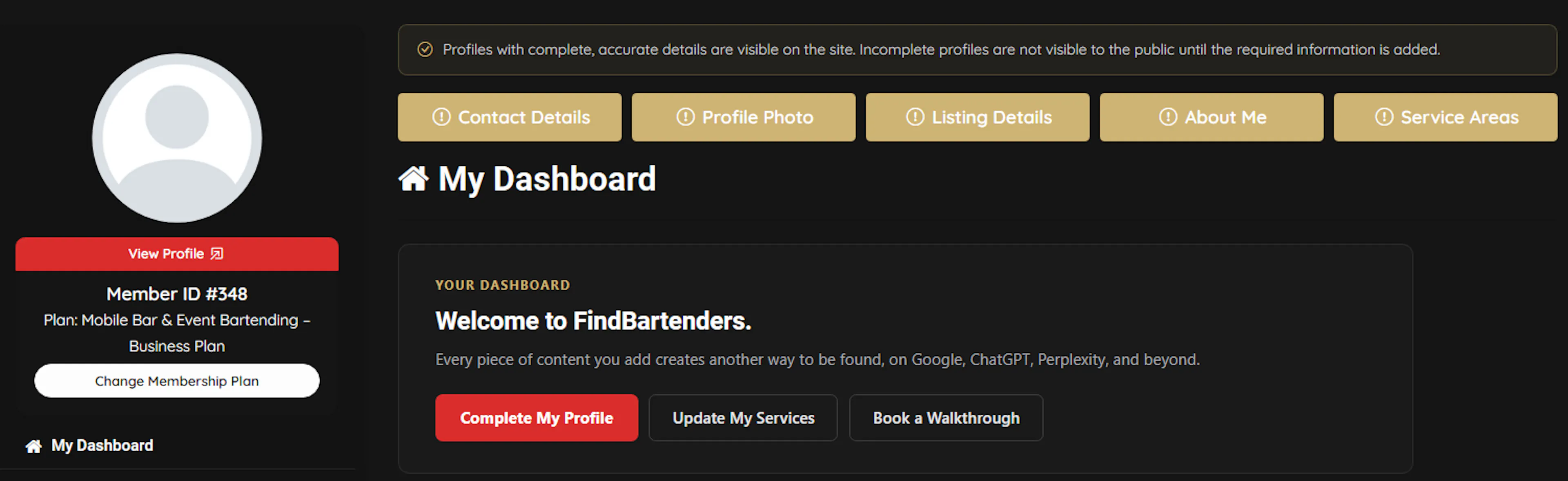
- Contact Details: your name or business name, email, phone and the rest of your contact info. Open Contact Details.
- Profile Photo: a clear photo of you or your business logo. The default placeholder doesn't count. Open Profile Photo.
- Listing Details: the core details of your business. Open Listing Details.
- About Me: who you are, the events you work and how long you've been doing it. It shows on your profile right under your intro. The editor lets you format text and add links, images or video, so a few clear sentences are all you need to start. Open About Me. See an example
- Service Areas: where you take bookings. A service area can be a city, a county or a whole state. Start with your home city, then add the places you regularly work, up to your plan's limit: Starter 2, Event Bartender Pro 5, Business 8. Only list places where you'd take a booking. How service areas work
Incomplete profiles aren't visible to the public, so this is the step that matters most. The Complete My Profile button on your dashboard takes you to the same sections.
Add the services you actually offer
Use Update My Services on your dashboard, or open Listing Details. Pick the services you'd take a booking for today, not everything you've ever done.
Verify your profile, where available
If verification is offered on your plan and you aren't verified yet, a Verify link appears under Manage Profile in your account sidebar. It isn't available on every plan, so if you don't see it, skip this step.
Check your public profile
Click View Profile, right under your photo at the top of your account sidebar. Look at it the way a host would: your photo, your services, your cities, your About section. Fix anything that looks off.
Add your first Event Album
Take your most recent event and add an Event Album: a few clean photos, a title that names the event, and the Event City & State. That's your first piece of real work on your profile. No event photos yet? Start with a styled shoot. Event Albums are included on Starter, Event Bartender Pro and Business plans.
Still not showing? Only active accounts appear publicly. If you see a payment or "account isn't active" notice, follow its button to your billing details. See Profile troubleshooting for other fixes.
Your profile is live. Next: make it one clients choose.
A live profile can be found. A finished one gets picked. These three pages take each part further than the checklist does:
Finish Your Profile
A real photo, an About section a host can trust, and the details clients look for.
Add Your Services
Every service you really offer puts you on that service's page.
Add Your Service Areas
Say where you work, then show it with Event Albums.
Then two things bring in work. When a potential client reaches out, reply fast, quote well and book the job. And after every event, post it, so more clients find you next time.
Get More Clients
How potential clients reach you, and how to reply, quote, follow up and book the job.
Get Found in More Places
Post your events, collect reviews, and share your link.
Need a hand?
Book a 1-on-1 walkthrough from Book a Walkthrough on your dashboard, or email support@findbartenders.com with the email address on your account.
Not a member yet?
Join FindBartenders
Set up your business profile, then come back here and work through the steps above.